MIDI velocity: why 64 is not half as loud as 127
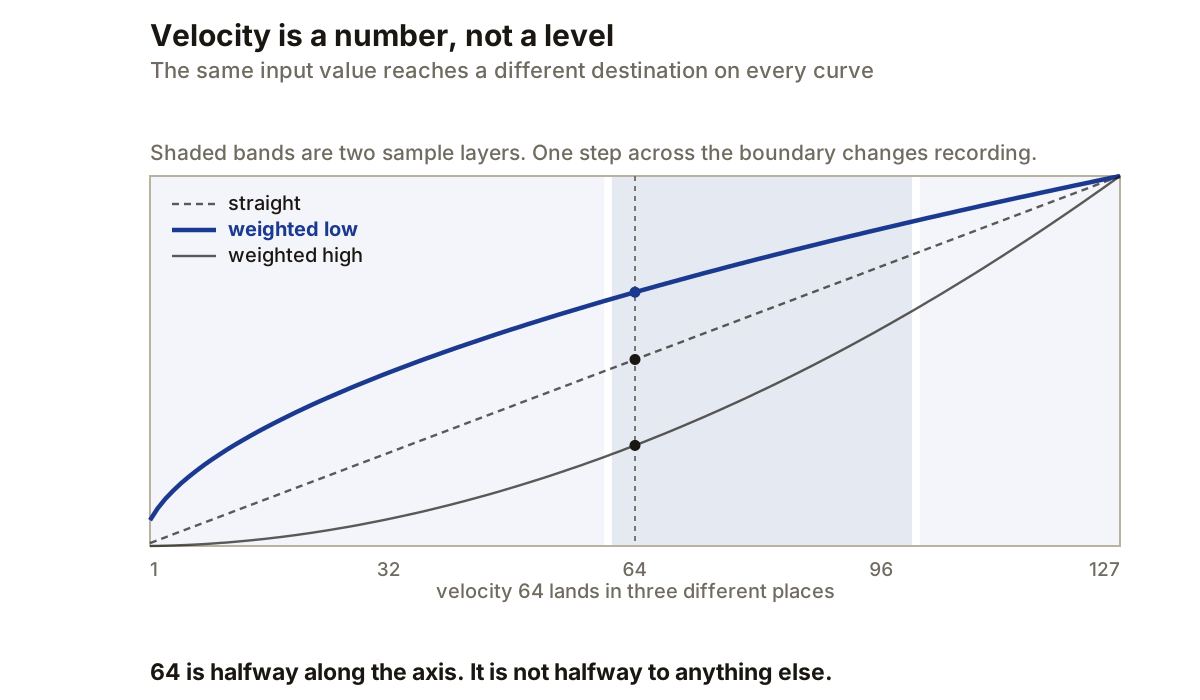
MIDI velocity is a number attached to a note event. It is often used for level, but it is not a decibel measurement. A velocity of 64 does not instruct an instrument to produce half the level of velocity 127.
The receiving instrument decides what the number controls and how it maps that number to its parameters. It may change output level, select a different sample, or move filter cutoff. One velocity edit can therefore alter several parts of a patch at once.
Velocity describes an input event
A MIDI Note On message contains the note number and its velocity. In the range used by DAWs and controllers, sounding-note velocities run from 1 to 127.
Velocity originally represents how forcefully a key or pad was struck. Apple describes its usual result as a change in note loudness, but also documents velocity assignments to filter cutoff and resonance. Ableton describes it more generally as the dynamics information in a MIDI clip.
A velocity value has no unit. It does not mean dBFS, LUFS or volts, so subtracting 10 from velocity is not the same operation as reducing an audio fader by 10 dB.
The instrument supplies the curve
A straight mapping gives equal parameter changes for equal velocity steps. Moving from 30 to 40 changes the destination by the same amount as moving from 100 to 110.
Many instruments provide velocity curves that bend this relationship. Steinberg’s velocity-curve processor offers ten preset curves and a user-drawn custom curve. A curve can allocate more of the available output movement to low input values, or reserve it for harder strikes.
This is why 64 is not guaranteed to be half of 127. It sits near the middle of the numeric input range, but the destination curve may be non-linear, and the patch may send velocity to several destinations with different curves and amounts.
Test the instrument rather than reading a MIDI value as an audio level. Repeated notes at 32, 64, 96 and 127 reveal four positions on the mapping. Measuring the rendered peaks shows the level response, while watching a filter display or sample-layer indicator reveals other assignments.
Sample layers create discrete changes
A sampler can use velocity ranges to choose recordings. Ableton’s Sampler assigns each sample a velocity zone within the 1 to 127 range, and Apple’s Sampler can create velocity layers when several recordings share a root note.
Suppose one sample responds from 1 to 60 and another from 61 to 100. Changing a note from velocity 60 to 61 switches recordings. That one-step edit can produce a larger difference than moving from 40 to 50 inside the first zone.
Adjacent layers can overlap and crossfade, in which case both recordings contribute through part of the range and the transition depends on the fade curve rather than one hard split point.
Random velocity changes need care around these boundaries. A note centred at 60 with a random range of plus or minus four can reach 56 to 64. Some hits trigger the lower layer while others enter the upper one, which may be useful variation or an unwanted change of articulation.
Compression changes the number range
MIDI velocity compression reduces the distance between low and high values before the instrument receives them. It does not analyse audio and does not apply gain reduction.
One method maps an input range onto a narrower output range, keeping each note’s relative position:
map input 20 to 120  onto  output 50 to 100

input  20   ->   50
input  70   ->   75      (halfway through the source range)
input 120   ->  100
The lowest note moved up by 30 and the highest moved down by 20. The performance now occupies 51 available output values instead of 101.
Expansion does the reverse, mapping a narrow input range onto a broader output range so small playing differences produce larger changes. Both operations remain dependent on the patch’s curve and layer boundaries.
Addition and scaling are different
Adding a fixed offset moves every velocity by the same amount until it reaches a boundary. Apple gives the example of adding 20 to velocity 120: the mathematical result would be 140, but the transmitted value stops at 127.
Scaling multiplies distances instead. Scaling by 50 percent moves velocity 100 to 50 and velocity 40 to 20, and the separation between those notes also halves, from 60 values to 30.
These behave differently near the limits. Addition preserves the original spacing until values reach 127, where several notes can collapse onto the same maximum. Scaling changes the spacing across the entire range.
If several notes already sit at 127, adding more velocity cannot restore their internal differences. Lower them first, or return to an earlier performance edit.
Randomisation needs boundaries
Random velocity can break mechanical repetition, but an unrestricted range can move notes across sample layers or exaggerate weak controller readings.
Ableton’s Velocity effect restricts random results with Output Low and Output High values. Keeping explicit limits stops a variation process creating values outside the intended playing range.
Set the range from the instrument backwards. Find the velocities that preserve the required articulation, then randomise inside that interval. For a sampler layer spanning 61 to 100, a centre of 80 with plus or minus ten stays inside the layer. Plus or minus 25 does not.
Repeated drum programming benefits from structured values before randomness. Place accented beats deliberately, set ordinary hits lower, reserve the lowest band for incidental notes, and add a small bounded variation only after those roles are clear.
Diagnose the controller and patch separately
Record a gradual series of strikes without quantising velocity, then inspect the minimum, maximum and distribution. A controller producing mostly 90 to 127 is sending a different usable range from one that regularly reaches 20.
Next, feed fixed values to the instrument: 16, 32, 48, 64, 80, 96, 112 and 127. That removes the controller from the test and exposes the patch’s curve, layer changes and modulation assignments.
Adjust the controller curve if the performed range is cramped. Adjust the MIDI notes if the performance contains a few errors. Adjust the instrument mapping if the input values are well distributed but the audio response is poorly spaced. Those are three separate problems, and the same separation applies to which held note a monosynth chooses.
Producer’s note
Program eight identical notes at velocities 16, 32, 48, 64, 80, 96, 112 and 127, and render them with all audio dynamics disabled.
Record the peak level of each and mark any sample-layer changes. If the level curve jumps at one particular value, inspect the sampler’s velocity zones before compressing the MIDI range. A narrower range may hide the jump simply by keeping every note inside one layer, which is a different fix from smoothing a curve and worth knowing which one you applied.